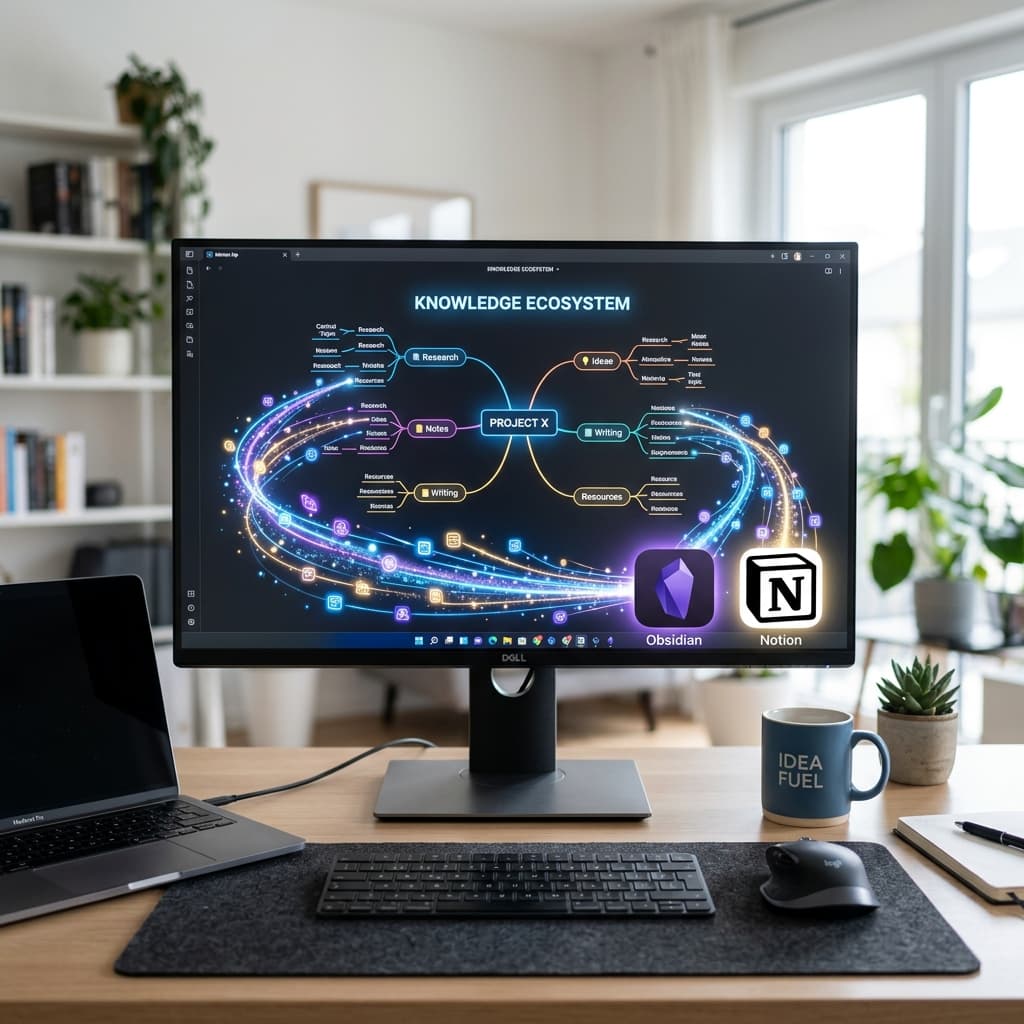
TL;DR — Connect your Notion workspace in mapifast Settings → Integrations, generate a mindmap from any YouTube URL, then hit Export → Notion. You get a clean Notion page with nested headings, citations preserved, and the interactive mind map embedded as a live preview. Two clicks total.
If you've been pasting ChatGPT YouTube summaries into Notion by hand and wondering whether there's a better way: there is, and it preserves the graph structure rather than flattening it into a wall of bullets.
Why most Notion + YouTube workflows are broken
The dominant 2025 workflow looked like this:
- Watch the video.
- Paste the transcript into ChatGPT.
- Ask for a summary.
- Copy-paste the result into Notion.
- Manually re-format the markdown.
- Lose all source citations.
- Forget the whole thing exists three days later.
Every step in that chain leaks signal. By the time the notes hit Notion they're a single block of homogenised text with no structure, no sources, and no retention loop.
The cleaner workflow
1. Connect your workspace (60 seconds, one-time)
Open mapifast → Settings → Integrations → Notion. Authorise the workspace and select the parent page where exports should land (we recommend creating a fresh "mapifast" parent page so nothing collides with your existing notes).
The OAuth scope is read/write on a single workspace; you can revoke at any time from your Notion settings.
2. Generate a mindmap
Paste any YouTube URL on the home page. Around 30 seconds later you have an interactive mind map with researched nodes and citation-grounded summaries.
3. Export
Open the map's menu and click Export → Notion. mapifast creates a new Notion page with:
- The video title as the H1 and the source URL in a callout.
- Each major branch of the mind map as an H2 section.
- Each researched node as an H3 with its summary and source citations inline.
- A toggle block per node containing the auto-generated quiz cards (so you can review without leaving Notion).
- An embedded live preview of the interactive graph back on mapifast.
Everything is native Notion blocks, not an attachment, so it plays nicely with backlinks, search, and any database views you've built.
Why graph-shaped notes win
Notion treats your knowledge as a graph (pages link to pages). YouTube's native format treats it as a timeline. Most AI summarisers flatten the timeline into a list, which loses the structure your brain (and Notion) actually wants.
By exporting the graph shape directly — H2 sections per pillar, H3 per concept, toggles per detail — you preserve the spatial information that makes the content easy to retrieve later. Notion's search and backlink engine works with you instead of against you.
What about Obsidian?
The same workflow exists for Obsidian, with a different export target. Instead of OAuth, you set a vault path; mapifast writes Markdown files with frontmatter and Obsidian-style [[wikilinks]] between nodes so the graph view actually populates.
Both exports preserve the same structure. Pick whichever ecosystem you already live in.
Frequently asked
Does the Notion export include the interactive map?
Yes. There is an embed block at the top of the exported page that opens the live map back on mapifast. You can edit the map on either side without breaking the link.
Can I auto-export every new mindmap?
On the Pro plan you can toggle "Auto-sync to Notion" in Settings. Every generated map lands in your chosen parent page within seconds.
Will it overwrite existing pages?
No. Every export creates a new child page. Re-exporting the same map creates a new page version; the old one is untouched.
Is my Notion data sent to any LLM?
No. The export is a one-way write from mapifast to Notion. No content from your Notion workspace is ever read or sent to any model.
Get started
Generate your first map free, then connect Notion in Settings. The full workflow takes under two minutes the first time, and around 20 seconds every time after that.
Read more
Building a Notion second brain with AI (2026)
A practical playbook for combining Notion AI, mapifast, and a few choice integrations into a self-improving second brain in 2026.
mapifast Changelog: Spring 2026 Updates & Roadmap
See what's new in mapifast this Spring, including advanced Deep Research agents, Obsidian export, and faster processing times.

How University Students Use mapifast to Ace Their Exams
A deep dive into how university students are replacing tedious note-taking with AI-generated visual mind maps to learn from YouTube lectures 10x faster.